Destroy and Rebuild an Environment
Tear down and recreate an environment from a clean state.
-
1
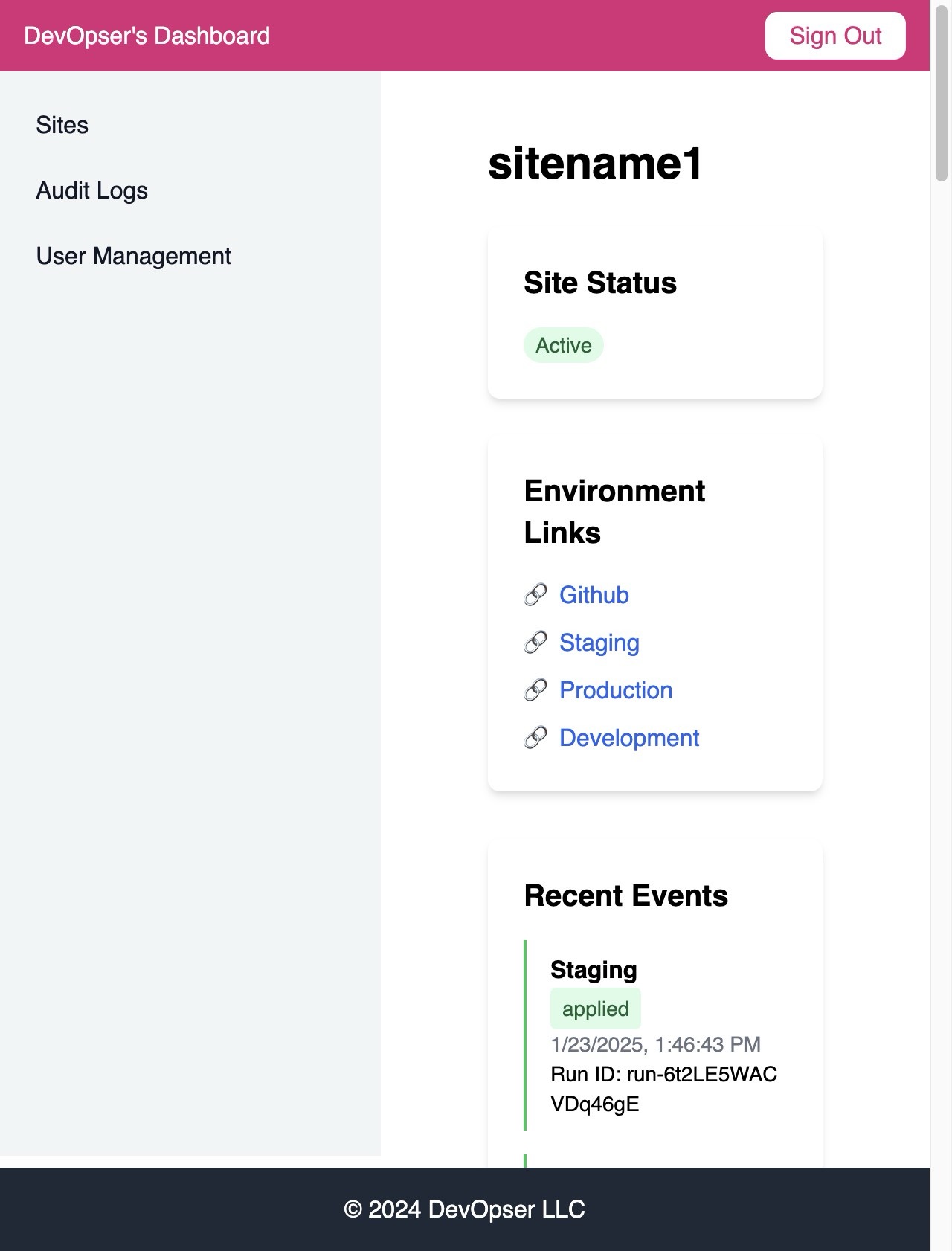
If you encounter persistent issues, particularly with database migrations (such as split heads from deleted migration files), you may need to reset your environment completely. The good news is that Staging and Production environments operate independently. Once your site is Active, you can reset either environment without affecting the other or deactivating your entire site. This gives you the flexibility to: - Reset Staging while keeping Production running - Reset Production while preserving your Staging environment - Remove all associated infrastructure from the chosen environment - Rebuild the environment with a clean slate
-
2
Navigate to your site deyail page - for example https://app.devopser.io/sites/<yoursitenumber>
-
3
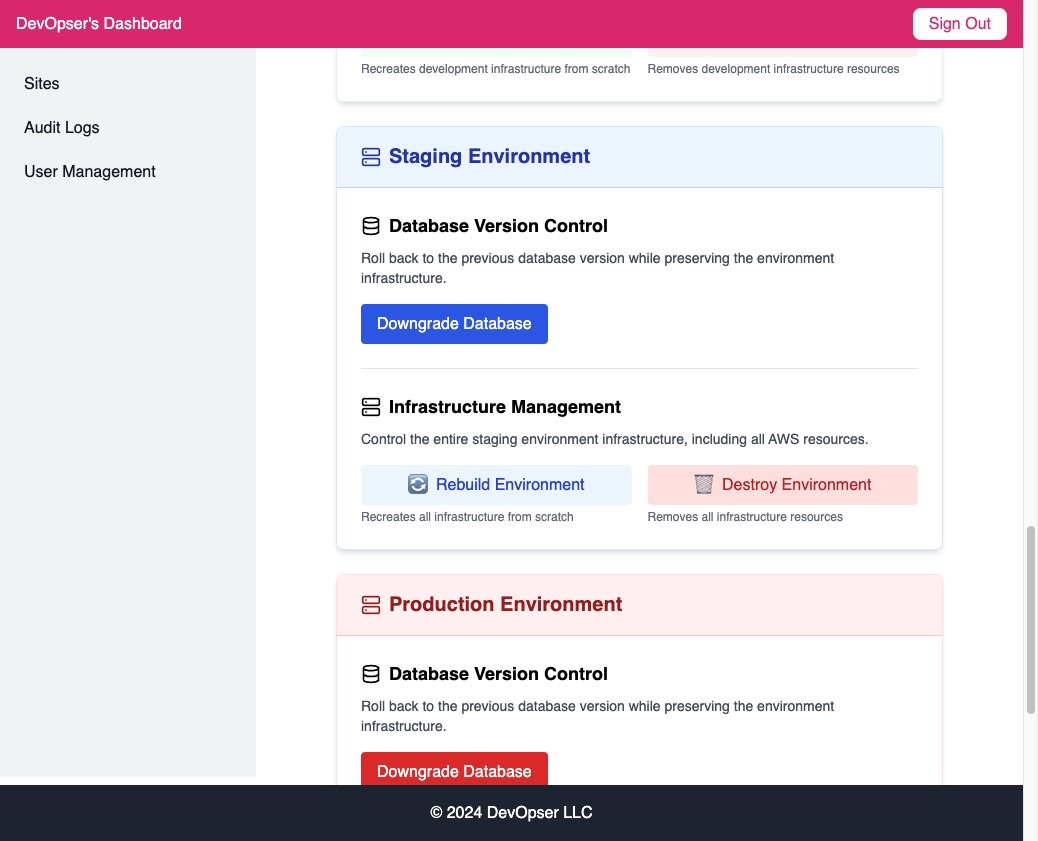
Find the environment you need to refresh and click “Destroy Environment”
-
4
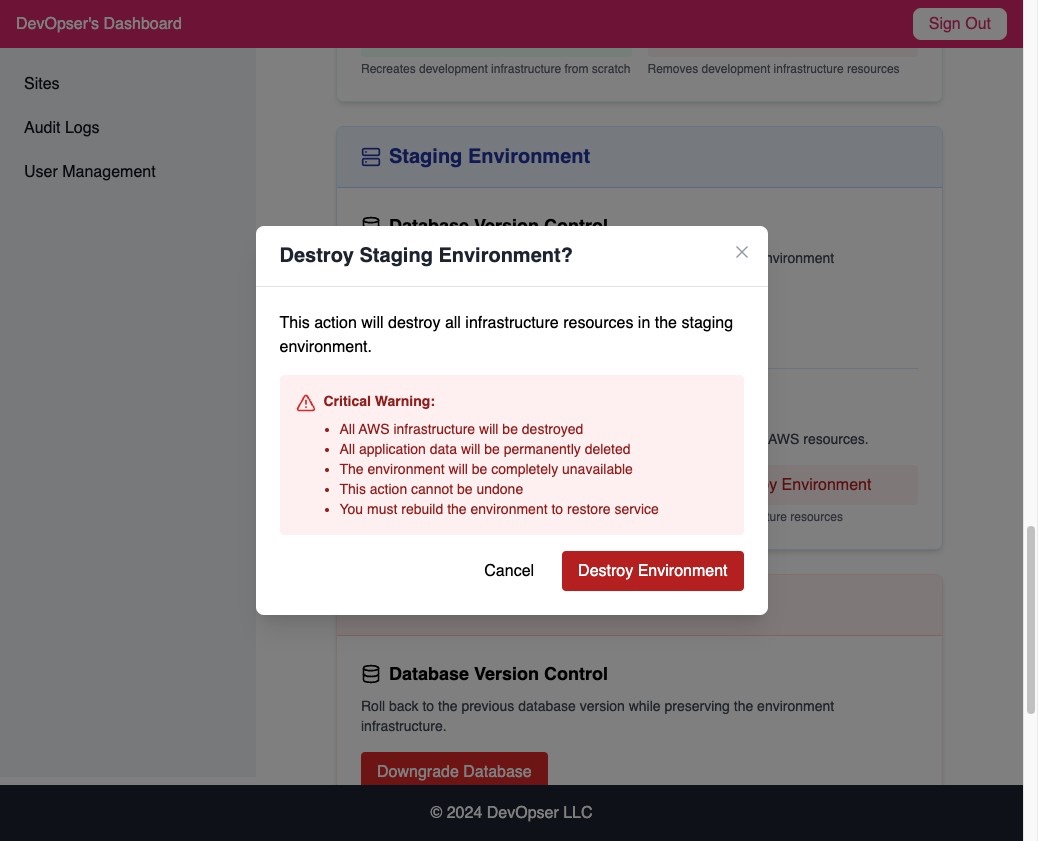
Click “Destroy Environment” to confirm.
-
5
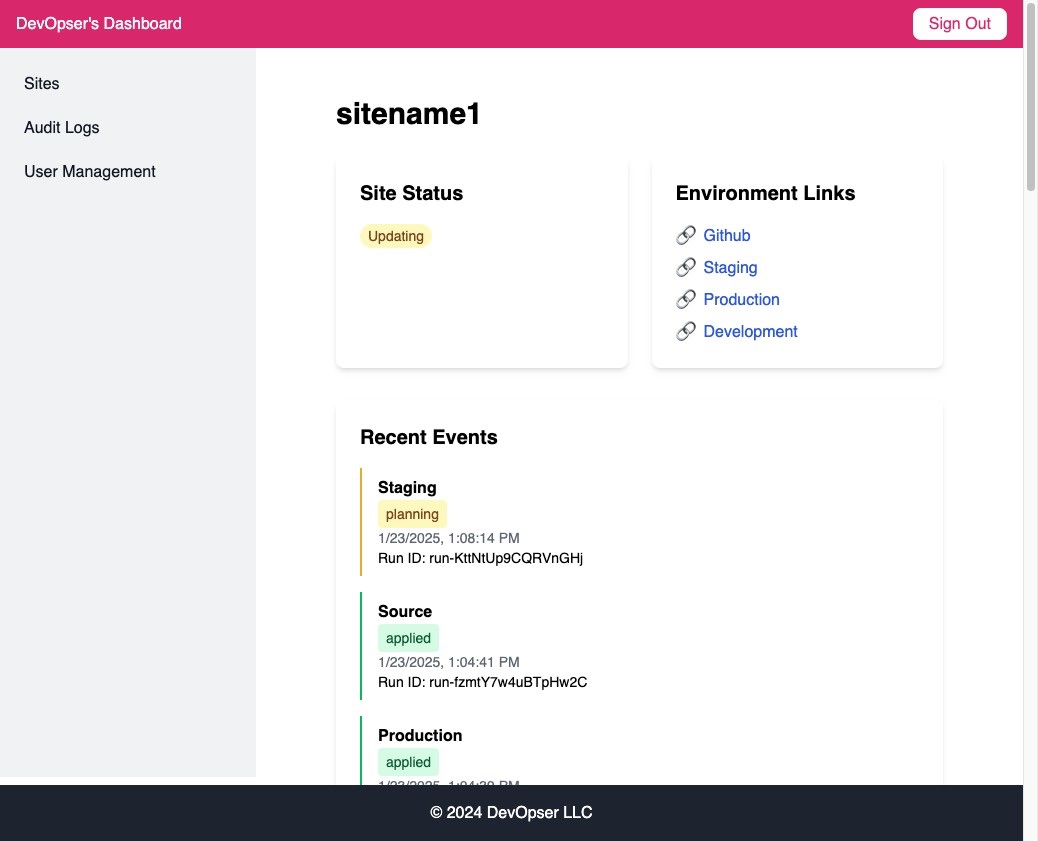
You can see the relevant environment is now in “planning” state.
-
6
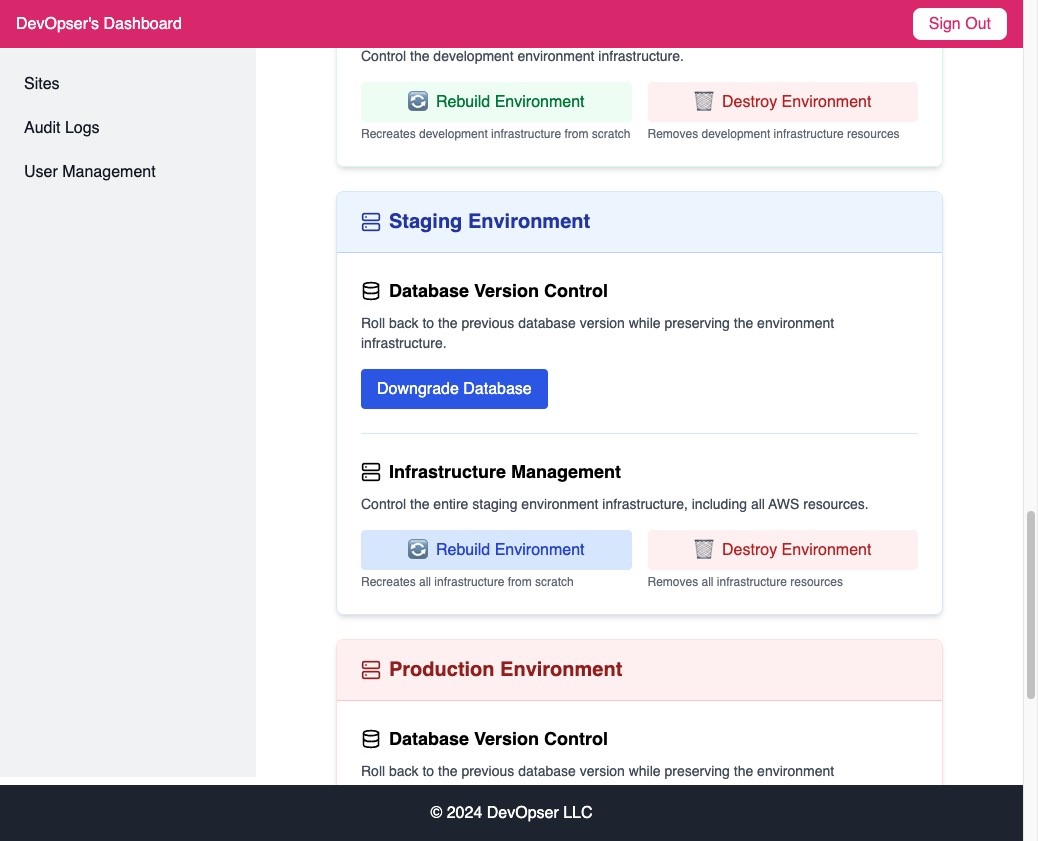
Click “Rebuild Environment” (you don't need to wait for the destroy to finish - it will automatically queue these requests)
-
7
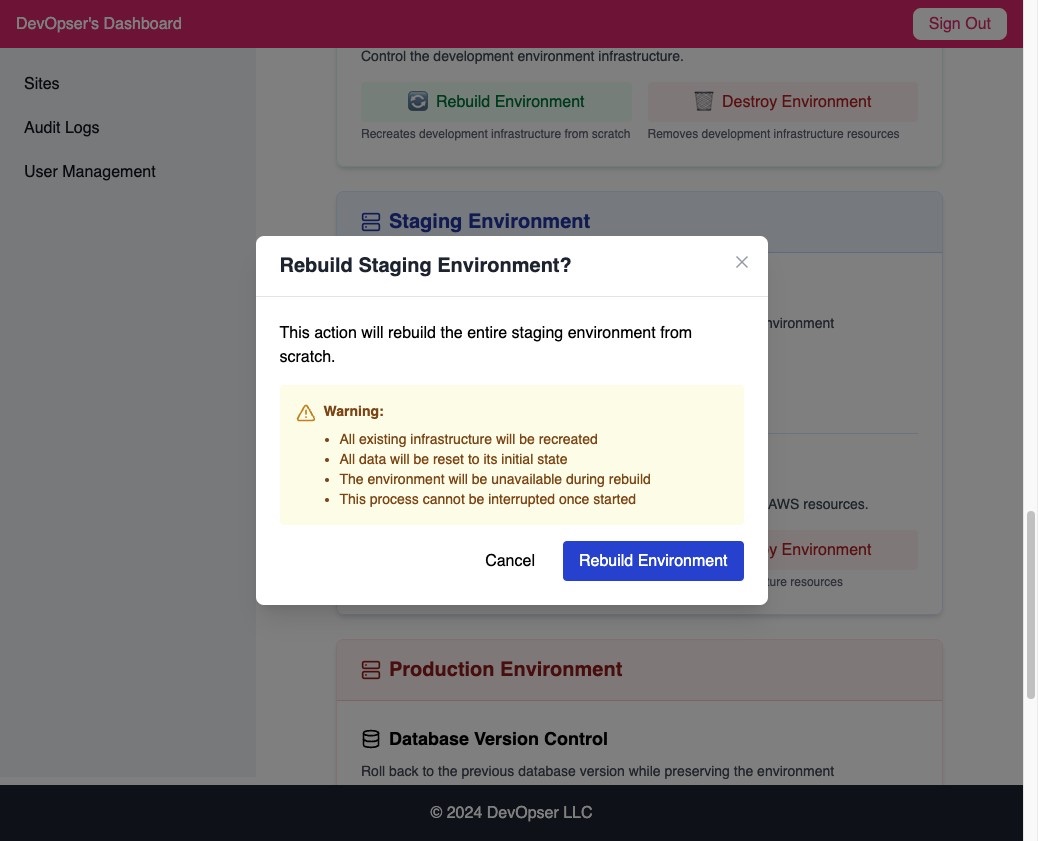
Click “Rebuild Environment” to confim.
-
8
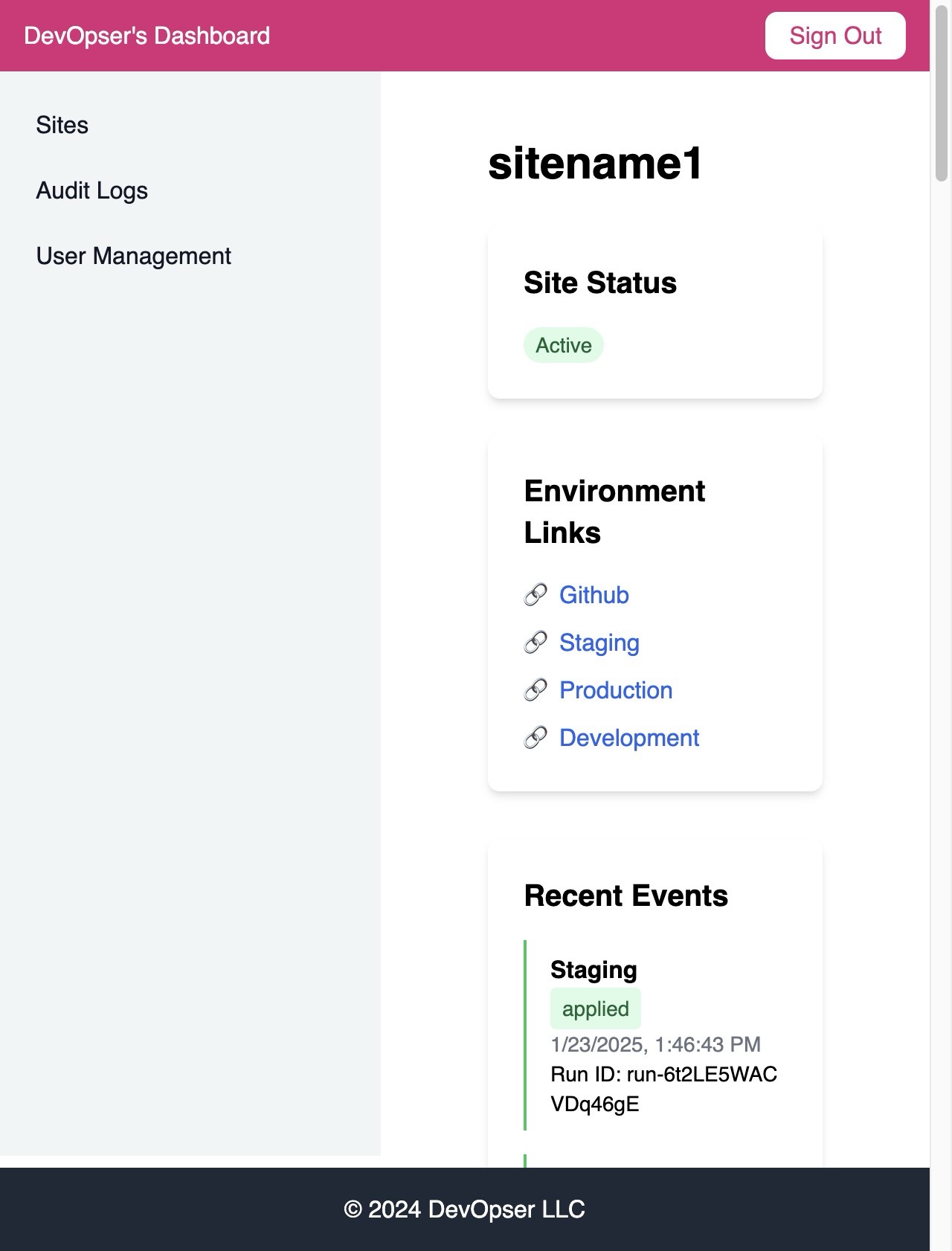
When the environment is rebuilt, the status will be “applied”.
-
9
And the overall site status will be “Active”